

During our use of the computer, we cannot predict what problems will occur in the future.
When you encounter some serious system problems, you may need to recover from a catastrophic computer failure.
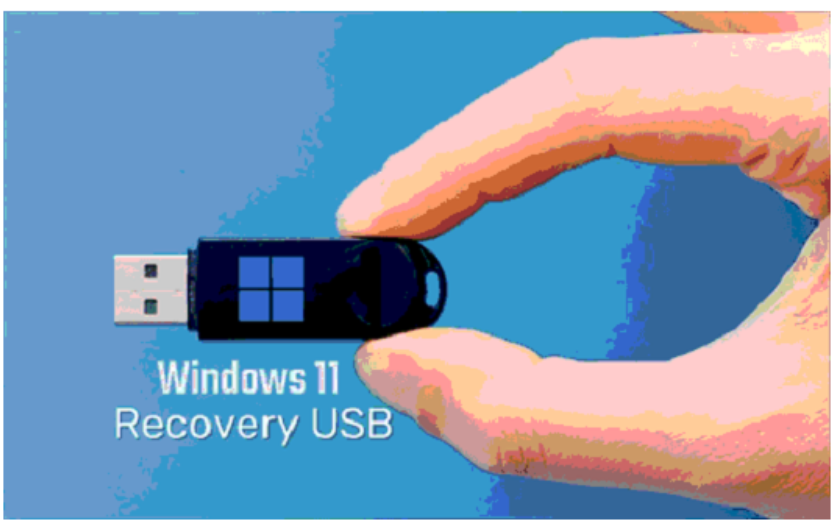
Unfortunately, for most users, this means starting from scratch because they didn’t create recovery media ahead of time.
While Windows 11 offers several ways to back up, restore, and reset your computer, you won’t be able to use any of these tools if your computer won’t start, gets stuck on a black screen, or gets stuck in a restart loop.
However, if you create a Windows 11 USB recovery drive ahead of time and keep it in a safe place, you can use it to access your computer if it won’t boot from the hard drive.
The great thing about a Windows recovery drive is that it’s not tied to a specific PC, and it can be used to boot up just about any Windows 11 computer that’s having problems and refusing to boot.
How To Create A Windows 11 Recovery USB
Next, I’ll show you two ways to create a Windows 11 recovery drive, both free of charge.
The first is to use third-party backup software, and the second is to use the tool that comes with Microsoft. You can choose the one that suits you better after reviewing the steps.
Note: Creating a recovery drive will delete all the data on your USB drive, so it is recommended that you create a backup in advance if you have important data on it.
If you don’t have a suitable place to store your backups, you can choose to back up to the cloud with free cloud backup software.
Way 1. Create Windows Bootable Media With Free Backup Software
AOMEI Backupper Standard is the best backup software embedded with many powerful features. It supports Windows 11/10/8/7 (32-bit and 64-bit).
Creating a bootable drive will help you boot your computer successfully. AOMEI Backupper, a bootable drive manufacturer, supports creating two kinds of bootable CDs or USB flash drives.
One is a Linux bootable disc and the other is a Windows PE bootable disc.
You can follow the steps below to learn how to create a Windows 11 recovery USB drive with AOMEI Backupper.
First, download and install this free backup software on your computer.
Preparations:
🤖 Prepare a USB drive and plug it into a working computer running Windows 11, making sure it can be detected by the computer.
🤖 Create a system image in advance with AOMEI Backupper and save it to a safe location in case you need it for recovery.
⦁ Open AOMEI Backupper, navigate to the Tools tab and select Create Bootable Media.
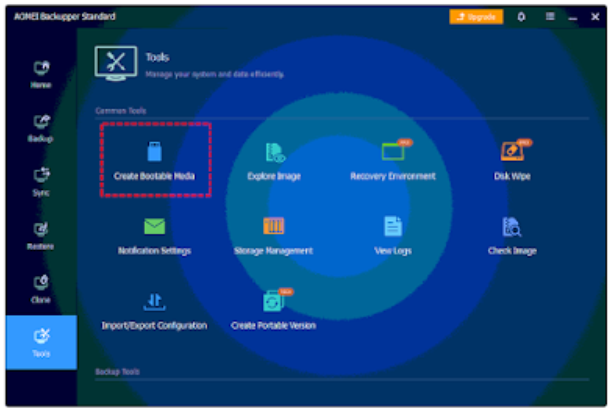
⦁ Then you can choose the type of emergency bootable disc that you are trying to create.
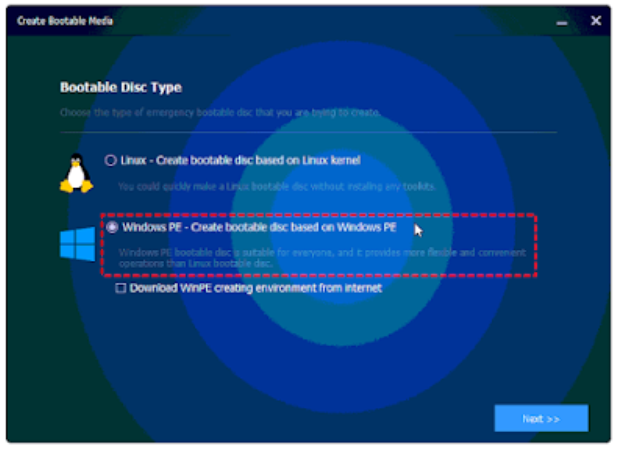
⦁ Select USB Boot Device to create Windows 11 bootable media and click Next to run the process
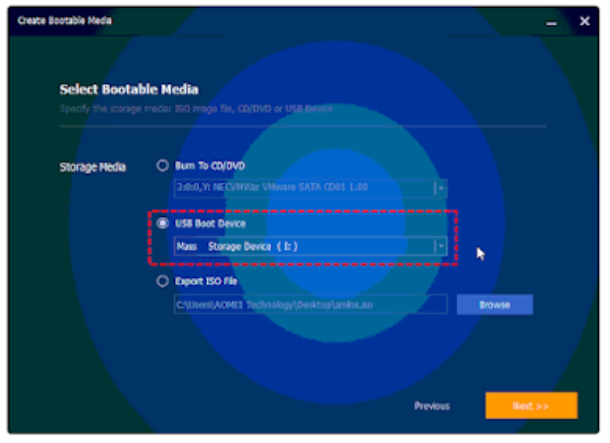
Way 2. Create Windows 11 Recovery Drive with Microsoft Built-In Tool
Microsoft has a built-in Recovery Drive application that helps you to create Windows 11 recovery drive. This tool is already pre-installed on your computer. If you have used it before on windows 10 to create a bootable drive, this will be very easy for you as the steps are the same.
⦁ Insert the USB drive on your computer.
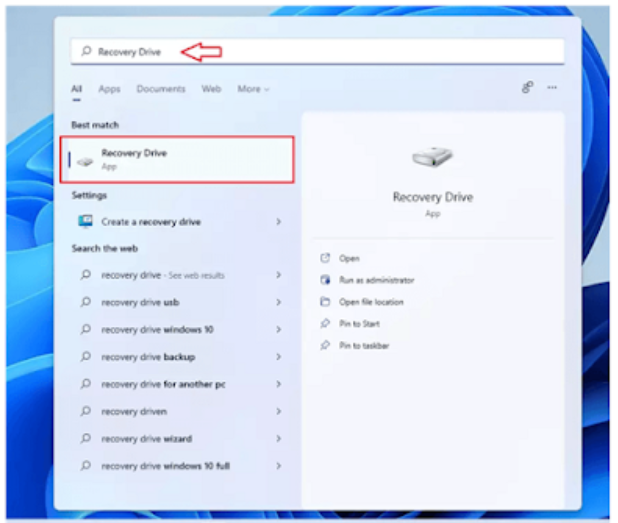
⦁ Click the Start menu and type Recovery Drive on the search box. Click the Best match app to open the Recovery Drive application.
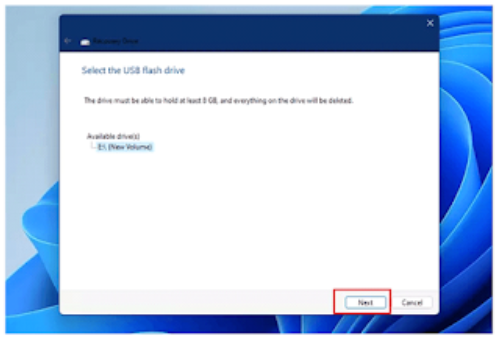
⦁ Once the application opens, Windows will automatically start scanning your computer for a suitable drive. Select the USB flash drive you inserted and click Next to continue.
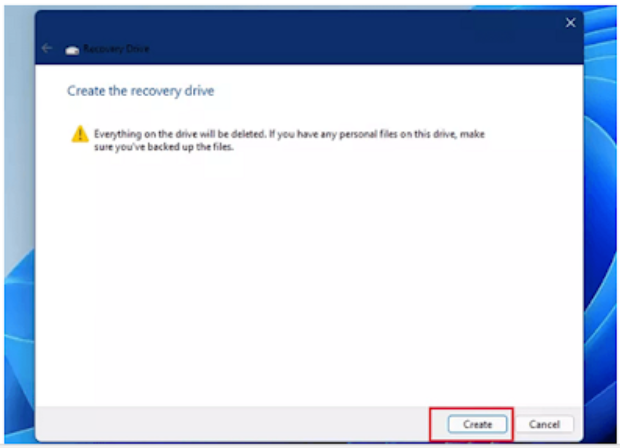
⦁ You need to be aware that the drive will be formatted and everything on the drive will be deleted. When you are ready, click the Create button.
⦁ Wait for the operation to complete and save the Windows 11 recovery disk to a safe place for emergencies.
Final Words
Both of the methods provided in this article can help you create a Windows 11 recovery drive.
In contrast, I would recommend you to use AOMEI Backupper to do this operation.
Because the recovery drive created with Microsoft’s own tools can’t be used to store other data once it is created, the bootable media created with AOMEI Backupper can be used to store other data.
What’s more, AOMEI Backupper provides comprehensive protection for your computer.
You can create backups of your important data or systems in case you need them.
You can also use it to migrate your system and data if you need to replace your computer’s hard drive (for purposes such as improving your computer’s performance) and make sure you can boot successfully from the cloned drive.

